OK. Honestly, I’m just dropping a quick one in here because it’s necessary. You can easily capture Animated GIFS, Screen Recordings, Animated PNGS on Linux with KDE Spectacle.
Background
Here’s the deal. Windows 10 be complaining that it’s End-of-Life and it won’t run on my laptop anymore and they need me to update my hardware. You know what OS doesn’t need me to update my hardware? That’s right, it’s Linux. So I went ahead and dropped Fedora KDE Plasma Desktop on my laptop and it’s working great. I used Kubuntu years ago and I’m super impressed at how far Linux has come along. There’s pretty much a Linux alternative to all the tools I use, not to mention that a lot of the tools I use are Linux native anyways.
The one thing that I couldn’t quite replicate is ShareX on Linux. I used ShareX on Windows to do the following things:
- Capture screenshots
- Capture screen recordings
And that’s it. I don’t use any sharing features. Try as I may, I couldn’t find something that would allow me to do that easily in KDE. I tried Flameshot, and it’s pretty cool, but I found it’s not quite as good as what I’m used to with ShareX. My experience is that opening flameshot basically took a screenshot of what’s on my screen and then tried to give me a selection tool. But the way it worked was it offset all my screens so just opening Flameshot made everything on my screen look different.
There’s also a very promising ShareX fork called SnapX. It looks pretty cool, basically like ShareX but for everywhere! However, it’s still very much in active development and I didn’t feel like trying to beta test the tool.
Solution
Enter Spectacle. Yeah, I know what you’re thinking. That’s just a simple screenshot tool, it’s not going to check off both your boxes. But, here’s the thing. It does check off both boxes. The docs don’t tell you about it, nothing published seems to say anything about it, but the ability to capture both a screenshot and a screen recording is legit right there in the interface for Spectacle. (I’ll go ahead and drop in a super grainy picture of my monitor to illustrate).
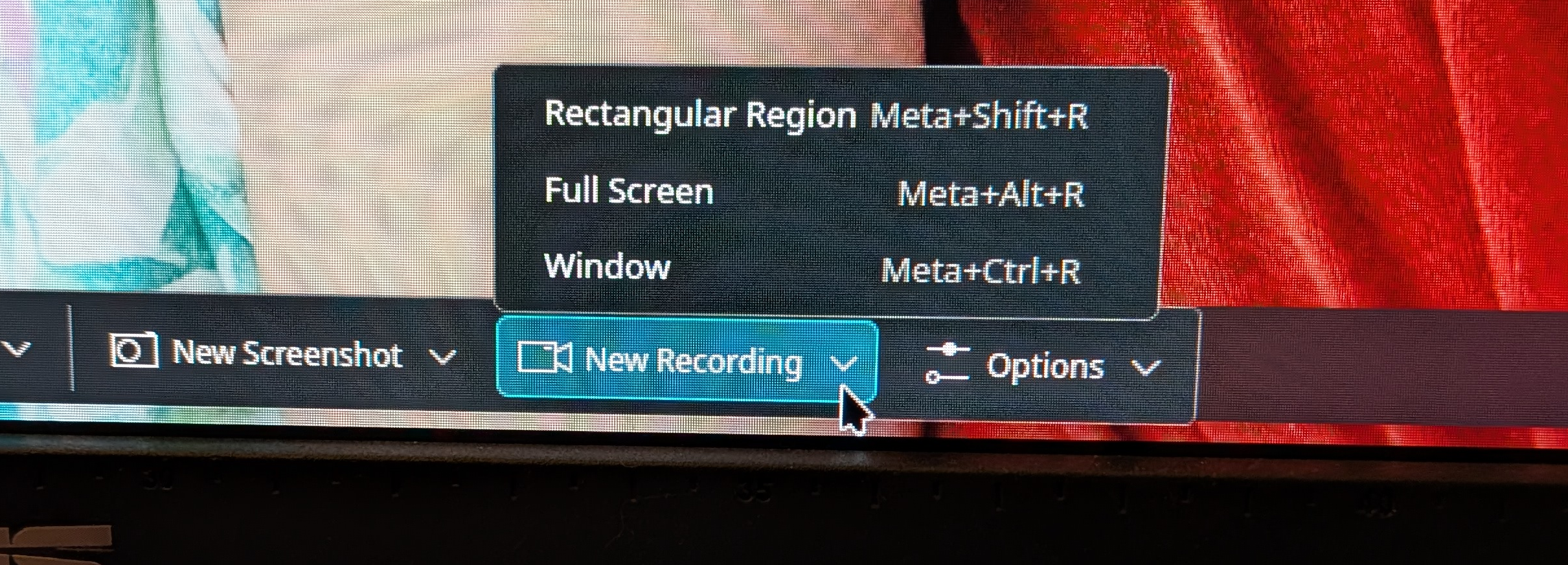
See – it’s right there. Spectacle gives you the opportunity to take a screenshot or a screen recording, right there with sweet rectangular selection, window, or fullscreen options.
How can you save animated gifs or png’s though? You just need to set that as the output format in Spectacle’s settings. The way I accessed that is by clicking the Options button just to the right of “New Recording” (see above uber grainy screenshot of monitor). From there you can navigate to Video Saving. Right next to the Filename text field there is a file type dropdown. Your options are WebM/VP9, MP4/H.264, Animated WebP (better than GIF), and GIF (compatible, but inefficient). Sweet right?
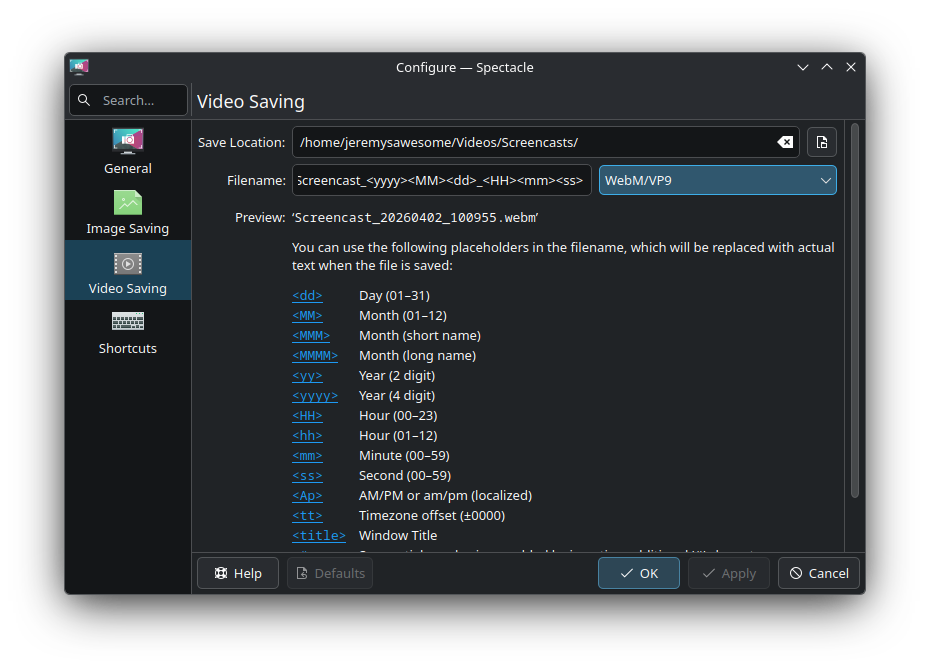
Important Note: Screenshots are stored in your Pictures/Screenshots folder and screen recordings are stored in your Videos/Screencasts folder.
Here’s a list of the keyboard shortcuts available to use.
KDE Spectacle – Screenshot & Recording Keyboard Shortcuts
| Action | Global Shortcut | Global Alternate |
|---|---|---|
| Capture Active Window | Meta+Print | |
| Capture Current Monitor | Shift+Print | |
| Capture Entire Desktop | Meta+Shift+Print | |
| Capture Rectangular Region | Meta+Shift+Print | |
| Capture Selected Window | Meta+Ctrl+Print | |
| Launch Spectacle | Meta+Shift+S | |
| Launch Spectacle without capturing | ||
| Start/Stop Region Recording | Meta+Shift+R | Meta+R |
| Start/Stop Screen Recording | Meta+Alt+R | |
| Start/Stop Window Recording | Meta+Ctrl+R |
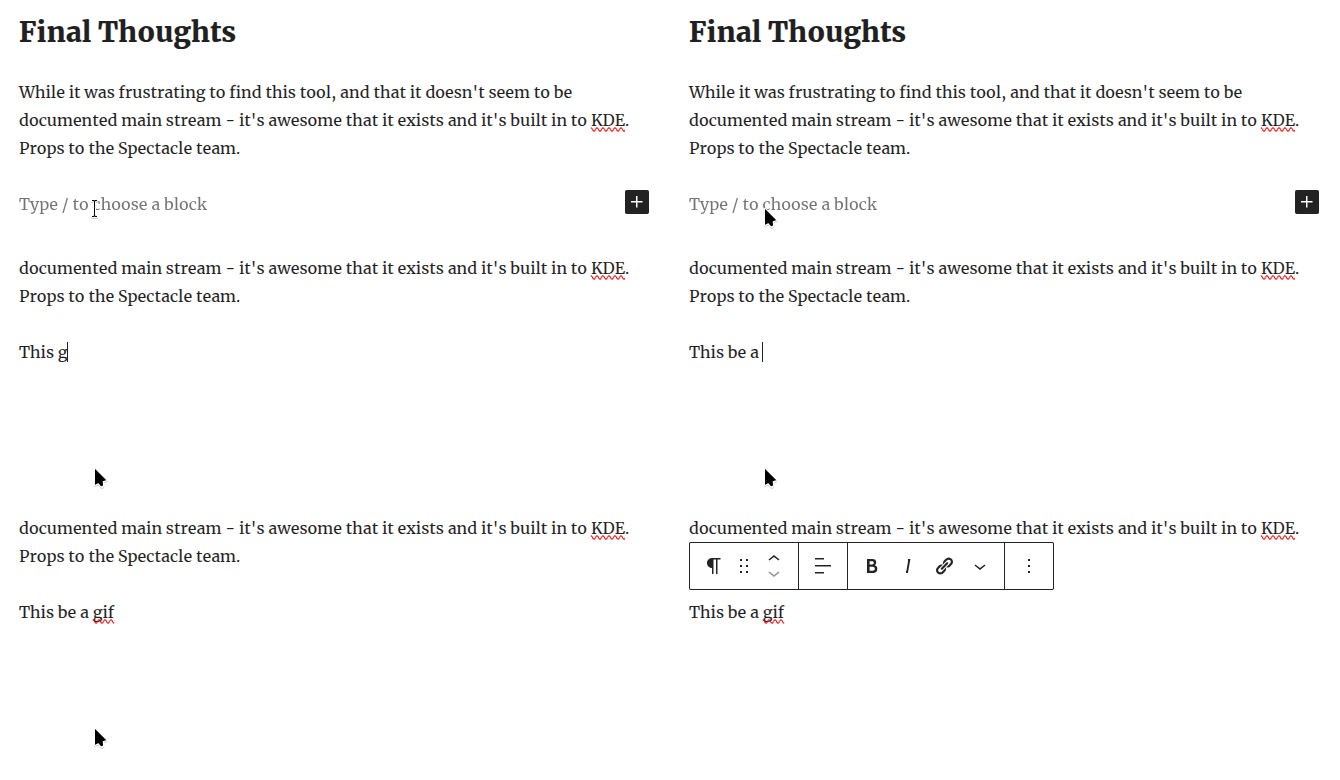
Proof
Final Thoughts
While it was frustrating to find this tool, and that it doesn’t seem to be documented main stream – it’s awesome that it exists and it’s built in to KDE! Props to the Spectacle team.
Get the word out, you can screen capture and screen record right from Spectacle. The tool is awesome 💥